
template.md 8.6 KB
marp: true
Marp
Markdown プレゼンテーションのエコシステム
by Marp チーム (@marp-team)
特徴
- :memo: Markdown 記法を使用したプレゼンテーションの作成 (CommonMark)
- :factory: Marpit framework を基に構築: プレゼンテーションを作成するための新しく軽量なフレームワーク
- :gear: Marp Core: npm を介してコアエンジンやビルトインテーマを使いやすく
- :tv: Marp CLI: Markdown を HTML 、 PDF 、 PPTX 、画像に変換可能
- :vs: Marp for VS Code: 編集中のスライドをライブプレビュー表示
- and more...
スライドの記述のしかた
やり方はとてもシンプルです。ハイフン記号 (e.g. ---)でページを分割します。
# スライド 1

本文

---

# スライド 2

本文
Directives
Marp では美しいスライド作成を支援するため、"Directives" という拡張構文を用意しています。
Markdown 記法の本文の前に挿入します:
---
theme: default
---
または本文のどこかに HTML 形式で記述します:
<!-- theme: default -->
https://marpit.marp.app/directives
グローバル Directives
theme: テーマを選ぶsize: スライドのサイズを16:9か4:3で選択する (Marpit frameworkを除く)headingDivider: 任意の見出しの前にスライドのページ区切りを挿入する--- theme: gaia size: 4:3 --- # 内容
Marp では以下の built-in themes in Marp Core が利用可能 :
defaultgaiauncover.
ローカル Directives
スライドページ毎に設定できる値一覧
paginate:trueでページ数を表示するheader: ヘッダーの内容を指定するfooter: フッターの内容を指定するclass: 現在のスライドにHTMLのクラス設定をするcolor: 文字色を指定するbackgroundColor: 背景色を指定する
スポット Directives
ローカル構文は任意のページとそれ以降のページに適用されます。
_class のようにアンダーバーと接頭辞を使うことで一つのページに適用できます。
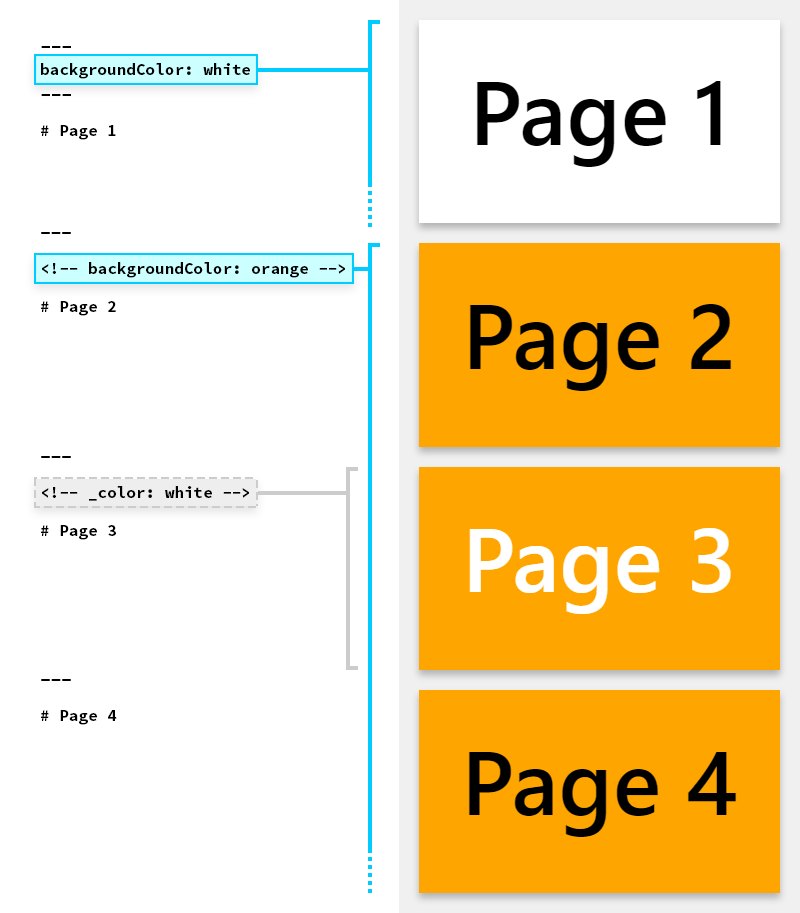
活用例
このページは defined in Marp built-in theme で色彩を反転させています。
<!-- _class: invert -->
画像イメージのための構文
以下のキーワードを使って、画像サイズの変更やフィルターを適用できます
: width (w) 、 height (h) 、 CSS のフィルター


resizing image syntax と a list of CSS filters を指定してください。

背景イメージのための構文
bg でスライドに背景イメージを設定できます。


複数の背景イメージを利用する (Marpit's advanced backgrounds)
Marp では複数の背景イメージを利用できます。



vertical で、アライメントの方向も変更可能です。
背景を分割する
Marp では背景を分割する Deckset を利用できます。
bg + left / right で背景イメージを配置するスぺースを指定可能です。


階層リスト
Marp ではアスタリスク記号をつけることで、各コンテンツを階層リストとして分類します。 (HTML 形式のエクスポートのみ by Marp CLI / Marp for VS Code)
# 箇条書きリスト

- 1
- 2
- 3

---

# 階層リスト

* 1
* 2
* 3
数式の設定 ( Marp Core のみ)
KaTeX math typesetting は $ax^2+bc+c$ のように Pandoc's math syntax で利用できます。
$$I_{xx}=\int\int_Ry^2f(x,y)\cdot{}dydx$$
$ax^2+bc+c$
$$I_{xx}=\int\int_Ry^2f(x,y)\cdot{}dydx$$
オートスケーリング ( Marp Core のみ)
Several built-in themes はコードブロックと typesettings でオートスケーリングされます。
Too long code block will be scaled-down automatically. ------------>
Too long code block will be scaled-down automatically. ------------------------>
Too long code block will be scaled-down automatically. ------------------------------------------------>
ヘッダーの自動調整 ( Marp Core のみ)は
<!--fit--> のような注釈をヘッダーに入れることで利用可能です。
## <!--fit--> Auto-fitting header (only for Marp Core)
CSS テーマ
Marp では各スライドのコンテナとして <section> を使います。その他は基本の Markdown 記法と同様です。 Marp CLI と Marp for VS Code ではカスタムテーマを利用可能です。
/* @theme your-theme */

@import 'default';

section {
  /* Specify slide size */
  width: 960px;
  height: 720px;
}

h1 {
  font-size: 30px;
  color: #c33;
}
Markdown 記法のスタイル調整
Markdown 記法の <style> タグは theme CSS のコンテキストで機能します。
---
theme: default
---

<style>
section {
  background: yellow;
}
</style>

Re-painted yellow background, ha-ha.
section.custom-class { ... }のように class を活用することで、カスタムスタイルの追加も可能です。<!-- _class: custom-class -->でスタイルを適用します。
特定範囲へのスタイル適用
現在のページの特定範囲へスタイルを適用したい場合は <style scoped> をご利用ください。
<style scoped>
a {
color: green;
}
</style>
