---
marp: true
---
Marp
===

##### Markdown 演示生态系统
###### by Marp 团队 ([@marp-team][marp-team])
[marp-team]: https://github.com/marp-team
[marpit]: https://github.com/marp-team/marpit
[marp-core]: https://github.com/marp-team/marp-core
[marp-cli]: https://github.com/marp-team/marp-cli
[marp-vscode]: https://github.com/marp-team/marp-vscode
---
# 特点
- :memo: **使用普通的 Markdown 编写投影片** (CommonMark)
- :factory: 基于 [Marpit framework][marpit]: 一个全新的轻量级框架,用于创建投影片
- :gear: [Marp Core][marp-core]: 通过 npm 轻松启动核心引擎并使用内置主题
- :tv: [Marp CLI][marp-cli]: 将 Markdown 转换为 HTML、 PDF、 PPTX、 和图像
- :vs: [Marp for VS Code][marp-vscode]: 在编辑时实时预览您的投影片
- 等等...
---
# 如何编写幻灯片?
通过水平标尺拆分页面 (e.g. `---`)。 这很简单。
```markdown
# 幻灯片 1
张三李四
---
# 幻灯片 2
张三李四
```
---
# Directives
Marp 引入了名为 **"Directives"** 的扩展语法,以支持创建漂亮的幻灯片。
在 Markdown 正文之前插入:
```
---
theme: default
---
```
或者在正文的任意位置使用 HTML 进行描述:
```html
```
https://marpit.marp.app/directives
---
## [全球 directives](https://marpit.marp.app/directives?id=global-directives)
- `theme`: 选择主题
- `size`: 选择幻灯片尺寸为 `16:9` 或 `4:3` *(不包括 Marpit framework)*
- [`headingDivider`](https://marpit.marp.app/directives?id=heading-divider): 在任意标题之前插入幻灯片的分页符
```
---
theme: gaia
size: 4:3
---
# Content
```
> Marp 中有以下 [built-in themes in Marp Core](https://github.com/marp-team/marp-core/tree/master/themes#readme) 可供使用 : `default`, `gaia`, and `uncover`.
---
## [局部 directives](https://marpit.marp.app/directives?id=local-directives)
每个幻灯片页面可设置的值列表
- `paginate`: 使用 `true` 显示页数
- `header`: 指定页眉内容
- `footer`: 指定页脚内容
- `class`: 为当前幻灯片设置 HTML 类
- `color`: 指定文字颜色
- `backgroundColor`: 指定背景颜色
---
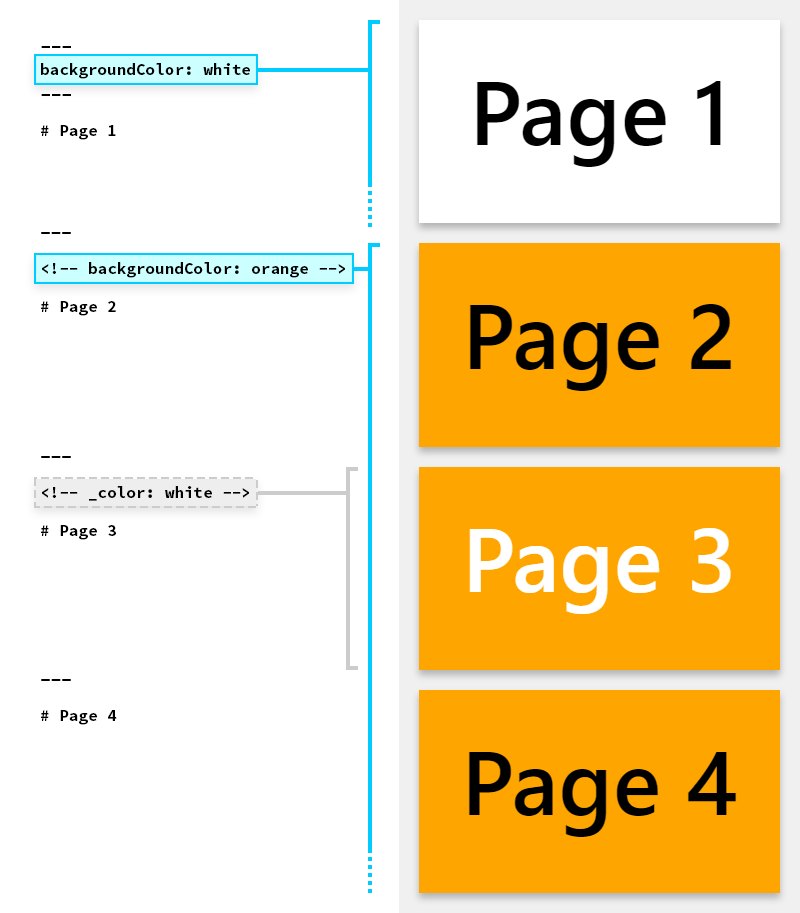
### 点 directives
局部 directives 将应用于 **defined page and following pages**.
通过使用下划线和前缀,例如 `_class` ,可以将其应用于单个页面。
---
### 例子
该页面使用了反转色彩方案 [defined in Marp built-in theme](https://github.com/marp-team/marp-core/tree/master/themes#readme)。
```html
```
---
# [图像标记语言的语法](https://marpit.marp.app/image-syntax)
您可以通过关键词调整图像大小并应用过滤器 : `width` (`w`), `height` (`h`), 和滤镜CSS关键词
```markdown

```
```markdown

```
请指定 [resizing image syntax](https://marpit.marp.app/image-syntax?id=resizing-image) 和 [a list of CSS filters](https://marpit.marp.app/image-syntax?id=image-filters)。
 
---
# [背景图像的语法](https://marpit.marp.app/image-syntax?id=slide-backgrounds)
您可以使用 `bg` 关键字为幻灯片设置背景图像。
```markdown

```

---
## 利用多个背景图像 ([Marpit's advanced backgrounds](https://marpit.marp.app/image-syntax?id=advanced-backgrounds))
Marp 可以使用多个背景图像。
```markdown



```
还可以通过包含 `vertical` 关键字来更改对齐方向。



---
## [分割背景](https://marpit.marp.app/image-syntax?id=split-backgrounds)
Marp 可以使用 [Deckset](https://docs.deckset.com/English.lproj/Media/01-background-images.html#split-slides) 风格的分割背景。
通过 `bg` + `left` / `right` 关键字为背景留出空间。
```markdown

```

---
## [分段列表](https://marpit.marp.app/fragmented-list)
Marp 将列表与星号标记解析为分段列表,以逐一显示内容。 (_**仅适用于导出的 HTML** by [Marp CLI][marp-cli] / [Marp for VS Code][marp-vscode]_)
```markdown
# 项目符号列表
- 一
- 二
- 三
---
# 分段列表
* 一
* 二
* 三
```
---
## 数学排版 (仅适用于 [Marp Core][marp-core])
使用 [KaTeX](https://katex.org/) 进行数学排版,例如 $ax^2+bc+c$ 可以与 [Pandoc's math syntax](https://pandoc.org/MANUAL.html#math) 一起使用。
$$I_{xx}=\int\int_Ry^2f(x,y)\cdot{}dydx$$
```tex
$ax^2+bc+c$
```
```tex
$$I_{xx}=\int\int_Ry^2f(x,y)\cdot{}dydx$$
```
---
## 自动缩放 (仅适用于 [Marp Core][marp-core])
*Several built-in themes* 支持对代码块和数学排版进行自动缩放。
```text
Too long code block will be scaled-down automatically. ------------>
```
```text
Too long code block will be scaled-down automatically. ------------------------>
```
```text
Too long code block will be scaled-down automatically. ------------------------------------------------>
```
---
##### 自动调整标题 (仅适用于 [Marp Core][marp-core])
##### 在标题中注释 `` 即可使用。
```html
## Auto-fitting header (only for Marp Core)
```
---
## [主题样式表](https://marpit.marp.app/theme-css)
Marp 使用 `` 作为每个幻灯片的容器。 其他的样式与普通的 Markdown 样式相同。定制主题可在 [Marp CLI][marp-cli] 和 [Marp for VS Code][marp-vscode] 中使用。
```css
/* @theme your-theme */
@import 'default';
section {
/* Specify slide size */
width: 960px;
height: 720px;
}
h1 {
font-size: 30px;
color: #c33;
}
```
---
## [在 Markdown 中微调样式](https://marpit.marp.app/theme-css?id=tweak-style-through-markdown)
Markdown 中的 `
Re-painted yellow background, ha-ha.
```
> 您还可以通过类别添加自定义样式,例如 `section.custom-class { ... }` 。
> 通过 `` 应用样式。
---
## [局部样式](https://marpit.marp.app/theme-css?id=scoped-style)
如果您想为当前页面设置一次性样式,可以使用 `

```
---
# 尽情享受幻灯片创作吧! :v:
#####  Marp: Markdown presentation ecosystem — https://marp.app/
###### by Marp 团队 ([@marp-team][marp-team])